
Part 1 discussed the Good Guys, digital comic services that let you own what you buy; part 2 covered services that let you take ownership of your purchases if you’re willing to do a little work (though maybe they don’t intend for things to work that way). What remains are the services that make it genuinely hard to actually own what you pay for; sadly that seems to be a lot of these services – too many for me to cover in one post. So this time I’ll talk about just one (even thought the backup technique I describe will be useful for a number of others) – the whole reason I’m rushing to write this series now: Jmanga.
Why is Jmanga the motivation for me to write all this down right now? Well, they’re a digital manga provider that 1) gave people access to a lot of titles we weren’t and aren’t likely to get otherwise, 2) provided access to read their comics only through a Flash app on their website (so there was no local download and no real mobile applications, and 3) announced 2 weeks back without any warning that they’re shutting down. In other words, this is suddenly kind of urgent. How urgent? Well, Jmanga required you to buy points with money and spend points to buy manga. Their shutdown dates are:
- 3/13 no longer able to buy more points
- 3/26 last day to spend points on new manga purchases; any remaining points after this date will be refunded as an Amazon gift card
- 5/30 last day to read comics on the service
Yeah, “shutting down” means all the stuff you purchased goes away. Unless there’s a way to back stuff up. Also, if there’s a way to keep from losing access to the manga you bought, it might actually be worthwhile to spend your remaining Jmanga points instead of wait and get the gift card. But the time to make that decision is, uh, right now.
So there’s the question: is there a reasonable way to hold on to your Jmanga purchases? And the answer here applies to a lot of these digital comic services: yeah, kind of. UPDATE: the answer is “yes, install Python and use the script at http://pastebin.com/gbzdbaN7” (I’ll be testing it later). The process below may continue to be useful for other services.
The short story is that there’s no magic, one step (the business term would be “turnkey”) solution: you can use network tools (even developer tools built into Google Chrome) to watch the Flash MangaReader application request JPEG files from Crunchyroll’s servers (yeah, Crunchyroll developed it, and apparently still hosts the images), but there’s no automated way to get those files just sent to a folder you control. But let’s say a programmer does that, just caches the files as they come in. The next thing you find is that these JPEG files are actually encrypted somehow – specifically, it looks like a straightforward substitution cipher – the contents of the file aren’t rearranged (it has regular chunks that match the structure of a normal JPEG file), but each character or byte of data has somehow been transformed to a different one, albeit in a way that looks very regular.
So now an automated backup solution would involve a programmer writing code to grab files and decrypt them based on a cryptographer breaking the cipher. That’s probably pretty doable – I mean, the manga reader application has to live on your computer to work, so the programmer could download and decompile it and probably get things working even if they didn’t know how to do cryptanalysis; even I might be able to get this working. Except for the whole time element.
So here’s the right-here, right-now solution: screencapping. That is, we go through the manga in the reader application one page at a time, taking a screenshot of each page manually. This sounds unbelievably tedious, but if you use the right tools it isn’t that bad – in my experience a single volume of about 200 pages can generally be backed up in about 8 minutes.
The correct tool on Windows is a free image program called IrfanView. Open and install it, then hit “c” and you’ll get its screencapture window: 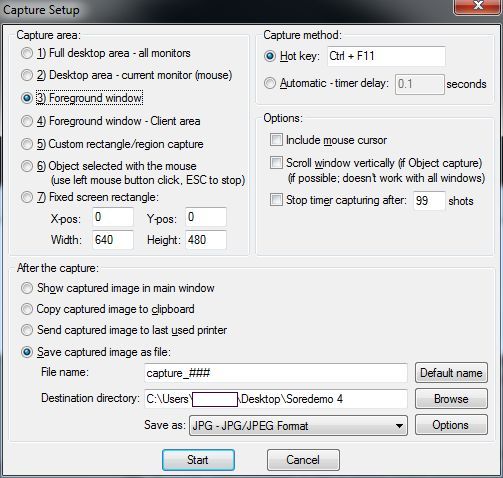
Leave the capture method as hotkey, and in the After the Capture section select Save captured image as file and select a folder for it to go in (IrfanView will create this directory if it doesn’t exist). Then hit Start.
Next open Jmanga in about as large a window as you can – each page appears to be about 1100 x 1500, so it’s best if you can do something like this: 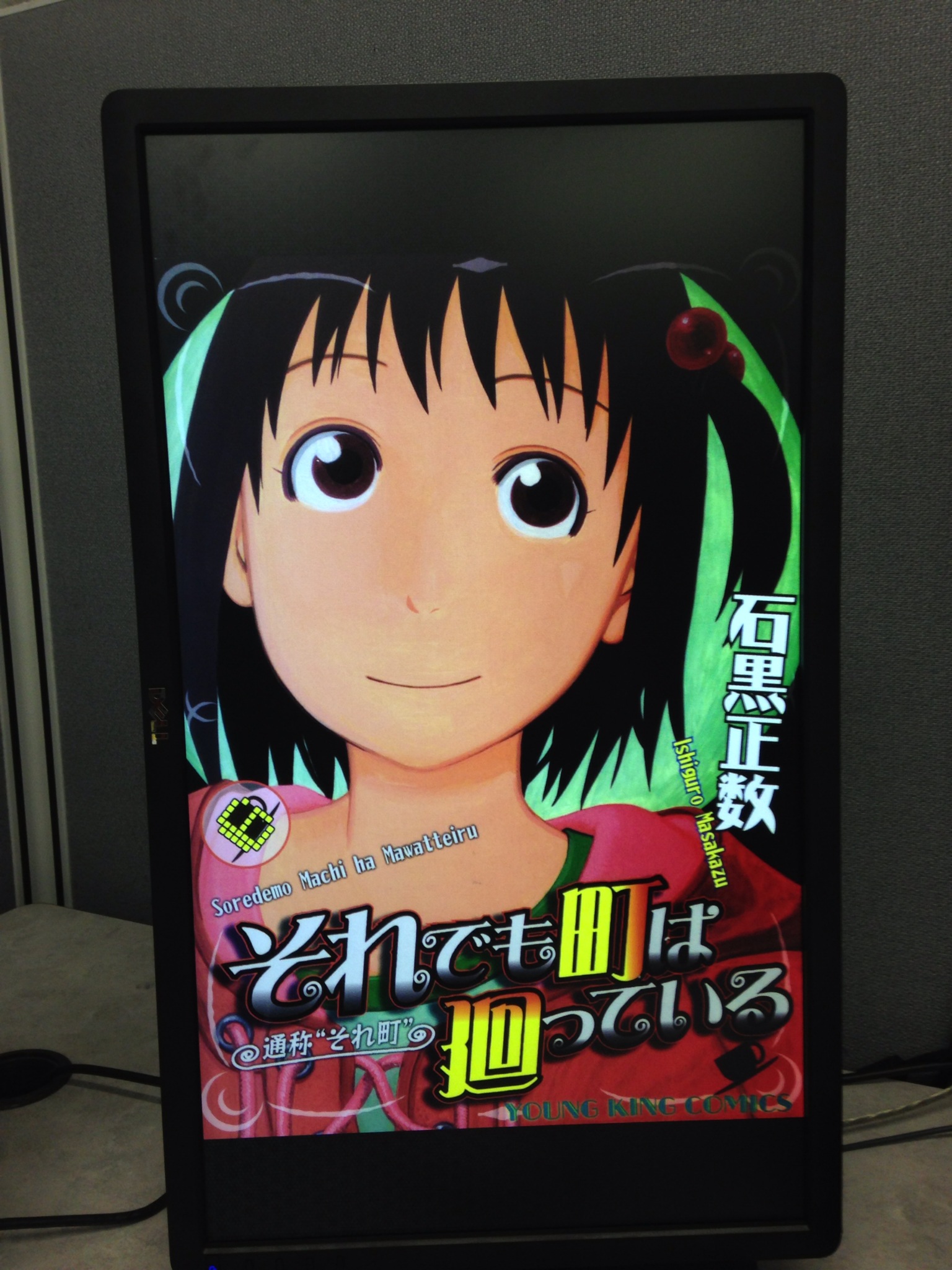
Finally, set Jmanga to single page view, fullscreen. Move the mouse below the bottom of the screen and wait for on-screen controls to fade out. And then it’s simple: Ctrl-F11 (or whatever you changed the screen capture hotkey to), left arrow, repeat. Or, you know, install Python and try out the script linked to above. The point is that now we have options.
 Percent Liar