
Picking up from part 1, we’re talking about the digital comic providers I thing of as Hearts of Gold, ones that sell you something that you can genuinely take ownership of and use as you will if you’ll just jump through a few hoops first. As before, I’m assuming the list below (and the instructions for jumping through hoops) is incomplete – feel free to let me know what services or steps for saving your stuff I should add.
- Viz Manga – Viz is the largest manga publisher in the US, and they make a lot of titles available both on their site and via various mobile apps. I really only use their iOS apps, so I don’t know how hard it is to make copies of your purchases over the web interface. But with the iPhone or iPad it’s straightforward:
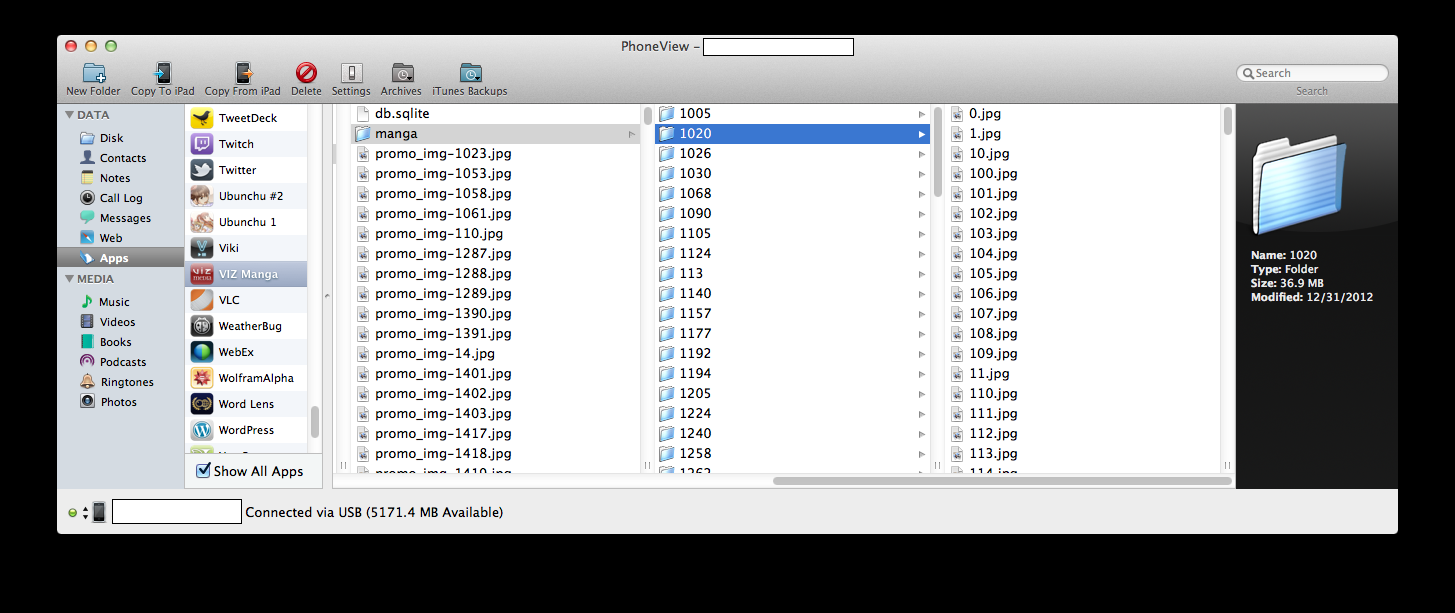
- Get an application that allows you to read the disk contents of the iPad or iPhone. I use PhoneView for the Mac; I don’t know what’s available on Windows.
- You’ll want to be looking at apps, and the Viz Manga app in particular. In the folders underneath that you’ll navigate to Library/Caches/documents/manga.
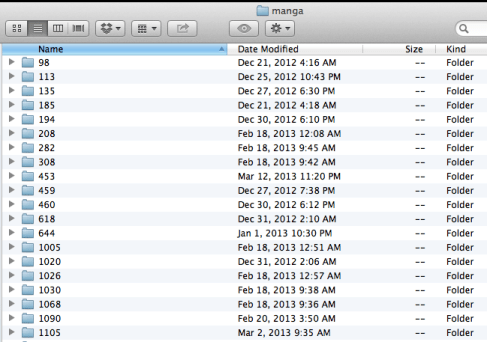
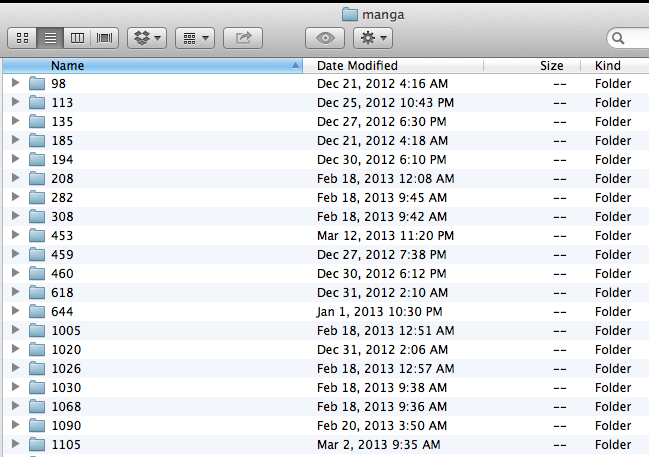
- You’ll see a series of folders under there that are numbered. These are actually volumes of manga (or issues of Shonen Jump and Shonen Jump Alpha). If you’re curious, these numbers are keys into the SQLite database that keeps track of the series and volume number that corresponds to each folder…not that you have to worry about this detail.
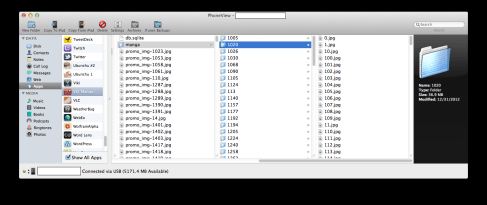
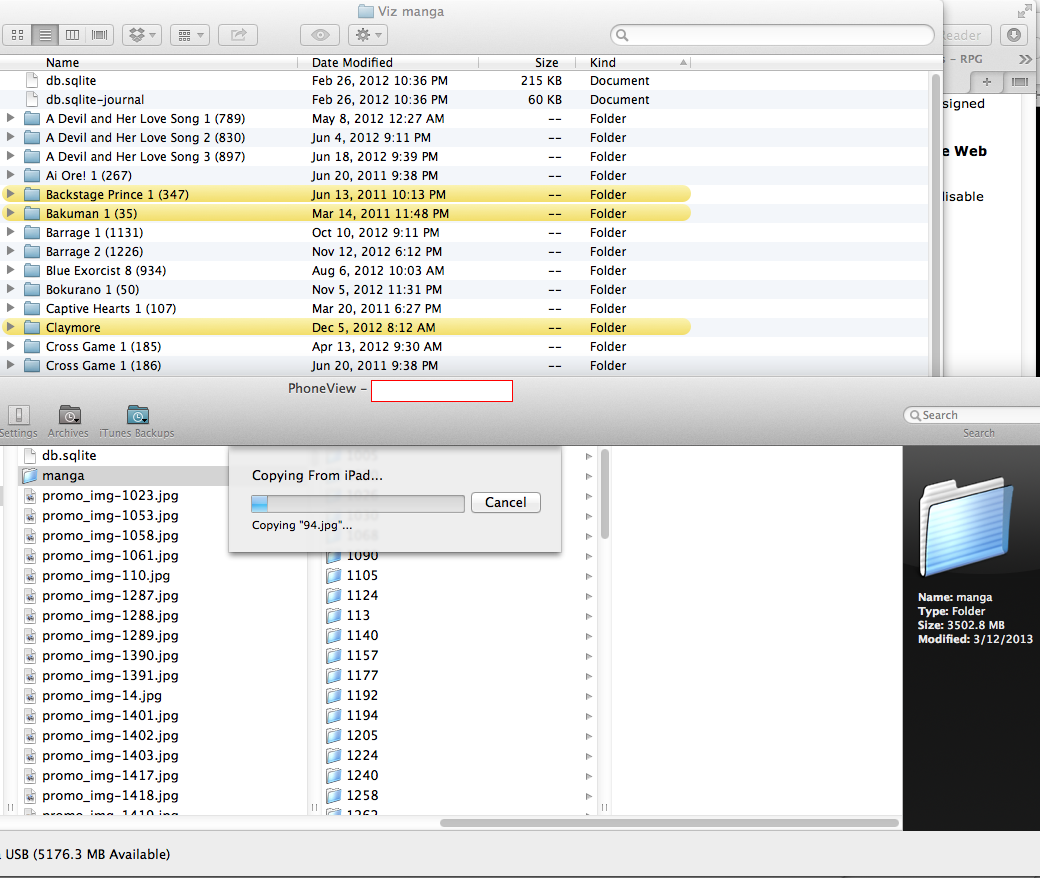
- You can select a single folder or all of them at once and just drag them to wherever you want them to live on your computer. If you’ve bought a lot of manga this may take a while as you pull a couple GB of data over a USB connection. As you can see from the screenshot, these are just folders containing .jpg files:
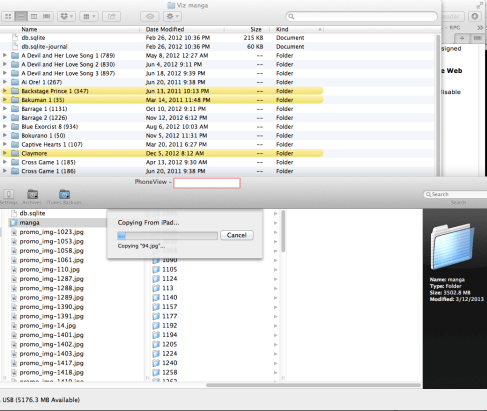
- OK, now you’ve got a bunch of folders with basically useless names on your computer
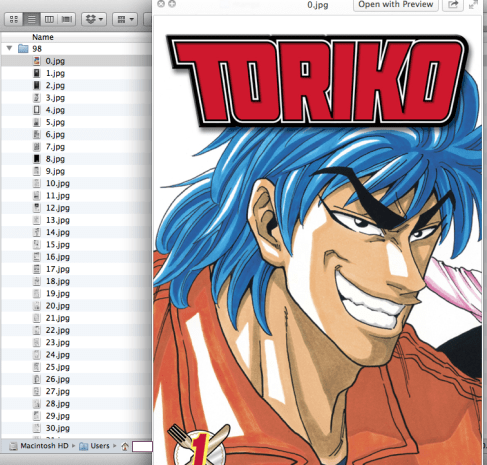
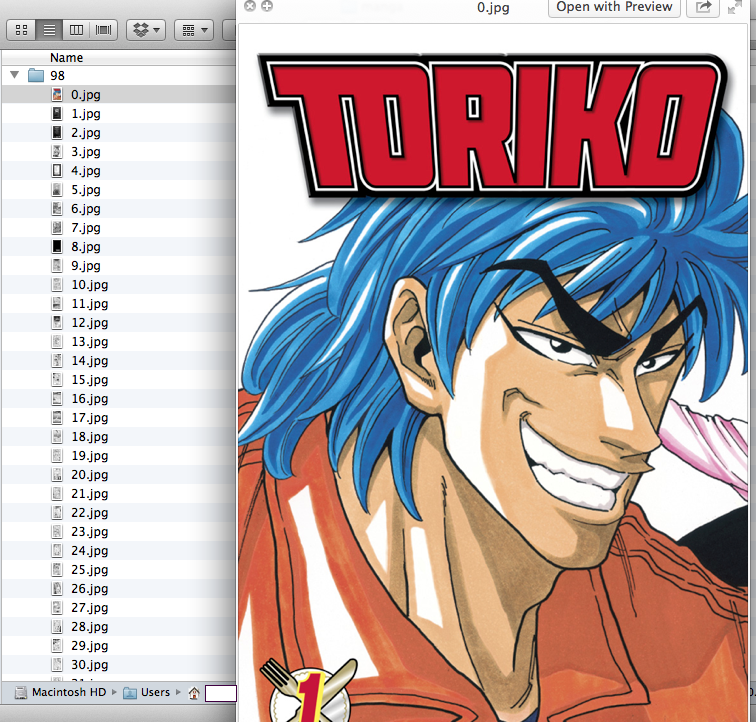
- Open them up and you’ll see they’re full of sequentially numbered .jpg files, with 0.jpg representing the front cover, and numbers increasing from there. So just take a look at 0.jpg to see what this folder represents and rename the folder based on that (this is the closest this process gets to tedium)
- Incidentally, if you put a folder full of .jpg files like this in Dropbox, the iOS apps (at least) are acceptable digital comics readers – click on one image and you can swipe right-to-left to go to the next page, and left-to-right to go back. Yes, that’s the opposite direction that unflopped manga reads (and there’s no built in handling of 2-page spreads) but it’s proof that you aren’t tied in to a specific reader app at least.
- Kodansha – again, I’m only talking about the iOS apps because as far as I know they don’t have a web reader, and I don’t know how their other mobile apps (if any) work. The process is basically the same as for Viz, above, but with the following differences:
- The folder you navigate to is Library/Caches
- That folder contains a bunch of standalone images as well as folders; the folders are volumes of manga you’ve bought and downloaded, the standalone images are covers of manga you may or may not have purchased. You don’t need the standalone images
- Each folder contains 2 subfolders: mfullpages (which contains the full-size page images – resolution about 1000 x 1500), and mthumbnails (resolution about 192 x 288). I don’t see any point in keeping the mthumbnails folders.
 Percent Liar
One thought on “Own Your Digital Manga (and Comics), part 2”